Sunday, June 3, 2012

Swim Heat Counter with PICAXE 08M2

A friend of mine had the exciting job of flipping cards to display heats at his daughter's swim tournament.  Not difficult to do, but it doesn't allow the much mobility for the person assigned to the job.  Wouldn't it be nice to modernize the task and make it wireless?
-----
With a PICAXE 08M2 microcontroller and a few servos the electrical part of the task is pretty simple.   Basically two buttons (a ONES place button and a TENS place button) pull an input to the PICAXE high, causing a subroutine to be called and the appropriate servo to move.  Adding wireless to the rig should be easy as well by re-purposing a cheap remote from a toy RC car to replace the two button/switches that cause the servos to move. 

Adding the mechanical digits will not be completely trivial, by my buddy says he is up to the challenge.
-----
 Short video of the rig in action.
-----
Schematic drawing of the build (click to increase size):
-----
PICAXE 08M2 Project Source Code.  Very simple:

#rem
 *******************************
 ***** www.WhiskyTangoHotel.Com  *****
 *******************************
    Project Name: Walker Swim Heat Counter

    Start Date: June 1, 2012
    
    Program Rev History: 
    This version steps the a ONES digit Servo and a
    TENS digit Servo in ten increments to "display"
    the numbers 00-99.

 ******************************* 
    PICAXE PE Rev: 5.5.1
#endrem

#picaxe08m2 ' using PICAXE 08M2 uC
#COM11 'programming on COM11

'min servopos value = 75
'center servopos value = 150
'max servopos value = 255

symbol Ones_Button = pinc.4 'input button for Ones digit.  Pull high to count
symbol Ones_Position = b0 'servo location var


symbol Tens_Button = pinc.3 'input button of Tens digit.  Pull high to count
symbol Tens_Position = b1 'servo location var

'b2 is variable used for math in calculating both servo positons

'Init some stuff...
let dirsC = %11000111  ' define I/O of PortC.  Not really required.

servo 1,150 ; initialise ones digit servo
servo 2,150 ; initialise tens digit servo
Ones_Position = 0
'Calculate and move Ones digit Servo to "display" 0
b2 = Ones_Position * 15 + 75
servopos 1, b2

Tens_Position = 0
'Calculate and move Tens digit Servo to "display" 0
b2 = Tens_Position * 15 + 75
servopos 2, b2

main: 'main loop continually checks if a button is pushed to move the Servos.
If Ones_Button = 1 then 'move servo for Ones Digit
gosub Change_Ones
endif

If Tens_Button = 1 then 'move servo for Tens Digit
gosub Change_Tens
endif

goto main 'loop and check for button presses


Change_Ones: 'Routine called when "Ones" button is pressed.
If Ones_Position = 9 then 'highest position is '9'.  Wrap to '0'
Ones_Position = 0
else
Ones_Position = Ones_Position + 1
endif
'Convert the Ones_Position into the correct servo location
let b2 = Ones_Position * 15 + 75
Select Case b0
Case 0
servopos 1, b2
Case 1
servopos 1, b2
Case 2
servopos 1, b2
Case 3
servopos 1, b2
Case 4
servopos 1, b2
Case 5
servopos 1, b2
Case 6
servopos 1, b2
Case 7
servopos 1, b2
Case 8
servopos 1, b2
Case 9
servopos 1, b2
endselect
pause 500 'delay 500mSec to allow the servo to move
return ' Change_Ones

Change_Tens: 'Routine called when "Tens" button is pressed.
If Tens_Position = 9 then 'highest position is '9'.  Wrap to '0'
Tens_Position = 0
else
Tens_Position = Tens_Position + 1
endif
'Convert the Tens_Position into the correct servo location
let b2 = Tens_Position * 15 + 75
Select Case b0
Case 0
servopos 2, b2
Case 1
servopos 2, b2
Case 2
servopos 2, b2
Case 3
servopos 2, b2
Case 4
servopos 2, b2
Case 5
servopos 2, b2
Case 6
servopos 2, b2
Case 7
servopos 2, b2
Case 8
servopos 2, b2
Case 9
servopos 2, b2
endselect
pause 500  'delay 500mSec to allow the servo to move
return 'Change_Tens
-----

Friday, May 25, 2012

Progression of a PICAXE LED Chaser (Knight Rider) LED Display

There was a question on the PICAXE forum asking about building up a "Knight Rider" display.  The '80s TV show "Knight Rider" featured a 1982 Pontiac Trans Am named "KITT" that had some blinky lights mounted in the hood that somehow let the car solves crimes and do some other amazing stuff.  Pretty impressive technology for an early '80s American car!

-----
The authentic way to do the "KITT" display is to show LEDs moving back and forth by turning a "main" LED on full bright and surround that full bright LED with progressively dimmer LEDs.  That is not that hard to do using the PWM (Pulse Width Modulation) features of the PICAXE, but I thought there may be an easier way.

I wanted to test a simpler way to simulate the display on "KITT" by just turning the LEDs on/off in sequence quickly.  I was also interested in experimenting with the PICAXE "let dir", "let pins", and "lookup" and this seemed like an easy platform to do this.  In the first attempt a PICAXE 18M2 was used to simulate an eight LED "KITT" display.  The result was surprisingly excellent.  To me, the PWM is not really needed due to the persistence for your vision and the LEDs.  An ADC input on the PICAXE was used to allow for an adjustable delay on how fast the display moves.  Here is a short video of the results:

The original forum question was asked by Jacob2803.  He gave it a try with my code as well and here is a short youtube video of his nice result:  http://www.youtube.com/watch?v=HwoHKqRI-sY
-----
After seeing an eight LED Chaser display the discussion of using more LEDs came up.  More is always better, right?.  The PICAXE forum is an interesting place.  It has participation of users from all levels; beginner to expert, and the brainstorming of solutions (on many problems) can be inspiring.  Many options were provided on increasing the LED count.  My thought on increasing the count on the LED Chaser display was to use the PICAXE 08M2 and the 74154 (4:16 Decoder).  The PICAXE 08M2 has fewer outputs than the 18M2 that was used above, but the 74154 only needs four control signals to turn on any one of 16 LEDs at a time.

Here is a picture and short video of what the 16 LED Chaser looked like on the development board:

-----
The 16 LED Chaser looked so cool, I decided to move it to a PCB and keep it "forever".  It barely looks like it has any similarity to the development board build.  Since the circuit is very minimal it cleans up well on the PCB.
-----
I programmed a few different chaser patterns into the PICAXE that can be selected with a button press.  Here is a short video of the PCB version of the 16 LED Chaser in action.
-----
My code and schematic is below in case you want to build your own.  If you build it and mount it to a 1982 Pontiac Trans Am please send us a pic.  ;)

Schematic:

PICAXE Code:

#rem
 *******************************
 ***** www.WhiskyTangHotel.Com  *****
 *******************************
    Project Name: 16 LED Chaser with 08M2 and 74590 Decoder

    Start Date: May 18, 2012

 *******************************
    PICAXE PE Rev: MacAXEPad 1.3.2
 
#endrem

#picaxe08m2
let dirsC = %11110111
'b0 is used as a general loop counter
Symbol StepDelay = b1
Symbol WhatCase = b2
Symbol MaxCases = b3 'Init value set below.  The # of possible display cases select routines programmed
'w2 (b4 and b5) used in random LED Case Select
Symbol ButtonPush = pinC.3

'Initialize some values
StepDelay = 20  ' Time to keep the only sigle LED the 74590 can turn on until moving to the next LED

Whatcase = 4    'Case Select routine that 'kicks things off' after reset
MaxCases = 4    '# of possible display cases select routines programmed.

main:
if ButtonPush = 1 then 'jump to a different Case Select routine
pause 25
Do While ButtonPush = 1
pause 25
loop
pause 25

if WhatCase = MaxCases then
let WhatCase = 0 ' reset WhatCase if it is equal the # of possible display cases programmed
endif
WhatCase = WhatCase + 1
endif

Select Case WhatCase

Case 1  'LEDs scan up and repeat
gosub LEDsUp

Case 2   'LEDs scan down and repeat
gosub LEDsDown

Case 3 'LEDs scan up the down and repeat.  This simulates the display on the "KITT" car in KnightRider
gosub LEDsUp
gosub LEDsDown

Case 4  'randomly turn on one LED at a time
gosub LEDRandom

end select

goto main

'LED pattern subroutines here.  Of course, more case routines can be added.
LEDsDown:
for b0 = 0 to 7
let pinsC = b0
pause StepDelay
next b0
'jump to 16 to turn on bit position 5
for b0 = 16 to 23
let pinsC = b0
pause StepDelay
next b0
return 'LEDsDown

LEDsUp:
for b0 = 23 to 16 step -1
let pinsC = b0
pause StepDelay
next b0

for b0 = 7 to 0 step -1
let pinsC = b0
pause StepDelay
next b0
return 'LEDsUp

LEDRandom:
RANDOM w2
let pinsC = w2 // 23 + 1 '"//" is modulus divide (returns remainder)
return 'LEDRandom
-----

Friday, March 23, 2012

Voltmeter Clock w/ F°, C°, and K° temperature readout.

-----
The objective was to create a real time clock using three analog voltmeters controlled via Pulse Width Modulation (PWM) to display "hours", "minutes", and "seconds".  At the press of a button the three meters display temperature in degrees F, C, and K.
-----
Here is a short (time lapse) video of the rig in action:


-----
There are four major components to the build.

  • PICAXE 14M2 microcontroller
  • DS1307 Real Time Clock (RTC) module
  • DS18B20 Temperature Sensor
  • Three 0-2VDC analog voltmeters (refaced to display as "hours", "minutes", and "seconds")
-----
The meters were taken apart to install custom faces.  A free program called "MeterBasic" was used to create the custom faces for the three voltmeters (see pic below).  Note that the meters have labeling to display temperature in degrees F, C, and K.
-----
See the black button below the "seconds" meter?  Pressing this button causes the meters to display their respective temperature.  
-----
Here are a few shots of the build process.  The "red thing with the black tip" is the DS18B20 temperature sensor.  In front of the meter in the middle (what will be the minutes meter), you can see a small PCB with two buttons.  These are used to set the time on the DS1307 Real Time Clock.  Pressing both buttons will set the seconds to zero.
------
The digital outputs on the PICAXE 14M2 put out about 5VDC maximum.  Our analog voltmeters only go to 2VDC maximum.  We set up a voltage divider circuit and a trimpot to allow the output from the PICAXE 14M2 to read full on our 2VDC meter.  The 100K trimpot (the little blue things in the pic below) allow for precise adjustment of the full scale reading.  Pushing the hour set, minute set, and read temperature button at the same time will force all meters to full scale.  This is to provide for precise tuning of the trimpots to calibrate the full scale reading of each meter.

After we have calibrated the meters to read "0" with no voltage and "full scale" from a high digital output on the PICAXE 14M2 we still have to be able to control the meters to display the time.  This is done by reading the time on DC1307 RTC via the I2C bus and the PICAXE 14M2.  Pulse Width Modulation control is used to convert the time (hours, minutes, and seconds) into a corresponding "average" voltage.  That PWM signal drives the three meters to display time.  The PICAXE 14M2 has four PWM output drivers that are well up to the job for this.

-----
Here is another look at the time set buttons.  They are located on the bottom side of the clock enclosure.
-----
The rig is powered by a rescued wall wart from an old Sony CD player.  The wall wart puts out 9VDC which is tamed to 5VDC with a LM7805 voltage regulator.
-----
If you want to build your own, the schematic looks like this.  The source code is below.
-----
Another pic of the finished rig.


-----
If you're still with us, here the PICAXE code:
; *******************************
; ***** www.whiskeytangohotel.com *****
; *******************************
;    Project Name: 3 Panel Meter Clock
; REV: FIN (everything works fine with clock and temp)
;
;    Start Date:  Feb 12, 2012
;    
;    Program Rev History/Ideas:
; - to set clock push M or H button
; - push main button to display temp F, C, and K
; - Routine to drive 3 meters to full scale when main button AND (M OR H)
; is pressed.  This is to allow adjustment of trimmers to full scale.
; Adjustment to zero scale should be done first with power off.
;
; ******************************* 
;    PICAXE PE Rev: MacAXEPad 1.3.2
;
#picaxe14m2

'define memory locations as symbols
symbol hour_meter = c.0 'LEG 7
symbol minute_meter = c.2 'LEG 5
symbol second_meter = b.2 ' LEG 11
symbol temp_switch = pinc.4 ' LEG3
symbol temp_sensor = b.5 'LEG8
symbol hour_set = pinc.3 'LEG3
symbol minute_set = pinc.1 'LEG6

symbol CthermoValue = b10
symbol FthermoValue = b11
symbol KthermoValue = w6 'b12 and b13
symbol seconds = b0
symbol minutes = b1 
symbol hours = b2
symbol day = b3
symbol date = b4
symbol month = b5
symbol year = b6
symbol blinky = b7
symbol Tens_Digi = b8   ;Used to get the Tens Digit from the $HEX RTC value
symbol Ones_Digi = b9 ;Used to get the Ones Digit from the $HEX RTC value
' w7 (b14 and b15) is used to control the PCM to the meters 

' Set the time on the DS1307 RTC
i2cslave %11010000, i2cslow, i2cbyte ; set PICAXE as master and DS1307 slave address
pause 50 

'Set all meters to full scale with 100% duty cycle
pwmout hour_meter,99,400        
pwmout minute_meter,99,400    
pwmout second_meter,99,400   


'\/ \/ \/ \/ Un_REM THESE LINES (BELOW) IF SETTING UP A NEW RTC  \/ \/ \/ \/
#rem
' Set the RTC chip time
;  write time and date e.g. to 11:59:00 on Thurs 25/12/03
'; would be "writei2c 0,($00, $59, $11, $03, $25, $12, $03, 010000)"
' readi2c 0, (b0,b1,b2,b3,b4,b5,b6,b7) reads back the data
let seconds = $00 ; 00-59 Note all BCD format
let minutes = $00     ; 00-59 Note all BCD format   
let hours = $01 ; 01-12 Note all BCD format
let day = $03     ; program does not use date, date, month, year
let date = $22      
let month = $03  
let year = $12      
let blinky = 000000 ; 010000 would Enable output at 1Hz blink rate.  000000 is no blink

writei2c 0,(seconds, minutes, hours, day, date, month, year, blinky)
pause 50 
#endrem
'/\ /\ /\ /\ Un_REM THESE LINES (ABOVE) IF SETTING UP A NEW RTC  /\ /\ /\ /\


; POWER ON SELF TEST.  Send all three meters to FULL Scale and back to 0
'NOTE:  pwmduty hour_meter, w7  ---->> w7 ranges from 0 to 400 to move meter from 0VDC to 2VDC
for w7 = 400 to 0 step -1' pwmduty needs a (W)ord var, not a (B)yte var
pwmduty hour_meter, w7 'adjust PWM Duty from 100% to 0% 
pwmduty minute_meter, w7
pwmduty second_meter, w7
next w7


main:

if temp_switch = 1 then
do ' while hour_set = 1 or minute_set = 1 then 'if main buttom and H or M set button pushed then
pwmduty hour_meter, 400 ' move all meters to full scale to allow trimmer adjust.  Do 0 meter adjust  1st with power off.
pwmduty minute_meter, 400
pwmduty second_meter, 400
loop while hour_set = 1 or minute_set = 1
end if ' temp_switch = 1

if temp_switch = 1 and hour_set = 0 and minute_set = 0 then
do 'while temp_switch is pressed
gosub DisplayTemp
loop while temp_switch = 1 and hour_set = 0 and minute_set = 0
end if

'read the RTC and display the time
readi2c 0, (seconds, minutes, hours, day, date, month, year, blinky)
pause 10
'\/ \/ \/ \/ \/ SECONDS SECONDS SECONDS \/ \/ \/ \/ \/
;Convert the Seconds from the RTC to Base10 and update the meter
if temp_switch = 0 and minute_set = 1 and hour_set = 1 then 'all pressed.  Seconds to $00
gosub Seconds_set
end if 

Ones_digi = seconds & 0x0F   ' zero out the top four bits

Tens_Digi = seconds & 0xF0   ' zero out the lower four bits
Tens_Digi = Tens_Digi / 2 ' each divide by 2 shifts the 
Tens_Digi = Tens_Digi / 2 ' bits LEFT.  Four shift get
Tens_Digi = Tens_Digi / 2 ' them all to the lower four bits
Tens_Digi = Tens_Digi / 2
Tens_Digi = Tens_Digi * 10 'Now shift the Base10 value to Tens place

seconds = Tens_Digi + Ones_Digi 'complete. Now $ss is ss (in Base10)
' Update the seconds meter with a w9 value of 0 to 400
w7 =  seconds * 677 / 100  ; (400/59=6.77) scale 0-59 seconds to 0-400 for PWM
pwmduty second_meter, w7
'/\ /\ /\ /\ SECONDS END /\ /\ /\ /\ /\ /\ /\

'\/ \/ \/ \/ MINUTES MINUTES MINUTES \/ \/ \/ \/ \/
if temp_switch = 0 and minute_set = 1 and hour_set = 0 then 'if temp_switch and M is pressed then add on minute
gosub Minutes_set
end if 
;Convert the Minutes from the RTC to Base10 and update the meter
Ones_digi = minutes & 0x0F   ' zero out the top four bits

Tens_digi = minutes & 0xF0   ' zero out the lower four bits
Tens_Digi = Tens_Digi / 2 ' each divide by 2 shifts the 
Tens_Digi = Tens_Digi / 2 ' bits LEFT.  Four shift get
Tens_Digi = Tens_Digi / 2 ' them all to the lower four bits
Tens_Digi = Tens_Digi / 2
Tens_Digi = Tens_Digi * 10 'Now shift the Base10 value to Tens place

minutes = Tens_Digi + Ones_Digi 'complete. Now $mm is mm (in Base10)
'Update the minutes meter with a w9 value of 0 to 400
If minute_set = 0 then 'dont update if we are setting the minutes.  Should correct this in Minutes_set routine
w7 = minutes * 677 / 100 ; (400/59=6.77) scale 0-59 minutes to 0-400 for PWM
pwmduty minute_meter, w7
end if 
'/\ /\ /\ /\ /\ MINUTES END /\ /\ /\ /\ /\

'\/ \/ \/ \/ \/ HOURS HOURS HOURS \/ \/ \/ \/
if temp_switch = 0 and minute_set = 0 and hour_set = 1 then 'if temp_switch and M is pressed then add on minute
gosub Hours_set
end if 

;Convert the Hours from the RTC to Base10 and update the meter
Ones_digi = hours & 0x0F   ' zero out the top four bits

Tens_digi = hours & 0xF0   ' zero out the lower four bits
Tens_Digi = Tens_Digi / 2 ' each divide by 2 shifts the 
Tens_Digi = Tens_Digi / 2 ' bits LEFT.  Four shift get
Tens_Digi = Tens_Digi / 2 ' them all to the lower four bits
Tens_Digi = Tens_Digi / 2
Tens_Digi = Tens_Digi * 10 'Now shift the Base10 value to Tens place

hours = Tens_Digi + Ones_Digi 'complete. Now $hh is hh (in Base10)

if hours > 12 then
hours = hours - 12
end if
if hours = 0 then 
hours = 12
end if

' Update the hours meter with a w9 value of 0 to 400
w7 = hours * 3636  ; (400/11 = 36.36)  scale 1 to 12 hours to 0-400 for PWM
w7 = w7 - 3636 'subtract  y interceot to start PCM at 0 to 1 o'clock.
w7 = w7 / 100 'scale 1 to 12 hours to 0-400 for PWM
pwmduty hour_meter, w7
'/\ /\ /\ /\ /\ HOURS END /\ /\ /\ /\ /\
goto main

DisplayTemp: 
readtemp temp_sensor, CthermoValue
w7 = CthermoValue * 677 / 100 '(400/59=6.77) scale C to 0-400 for PWM
pwmduty minute_meter, w7 'C (raw) in the minutes meter)

'Convert C to F
FthermoValue = 9 * CthermoValue / 5 + 32
w7 = FthermoValue * 364  ; (400/11 = 36.36)  scale 10 to 120F  to 0-400 for PWM
w7 = w7 - 3636 'subtract  y interceot to start PCM at 0 to 10F
w7 = w7 / 100 'scale 0-400 for PWM
pwmduty hour_meter, w7 '(F (x10) on the hours meter


'Convert C to K
KthermoValue = CthermoValue + 273
w7 = KthermoValue / 10
w7 = w7 * 677 / 100 
pwmduty second_meter, w7 'Kelvin *100 on the seconds meter

return 'DisplayTemp

Seconds_Set:
seconds = $00
writei2c 0,(seconds, minutes, hours, day, date, month, year, blinky)
pause 50 
w7 =  seconds * 677 / 100  ; (400/59=6.77) scale 0-59 seconds to 0-400 for PWM
pwmduty second_meter, w7
return 'Seconds_set

Minutes_Set:
readi2c 0, (seconds, minutes, hours, day, date, month, year, blinky)
;Convert the Minutes from the RTC to Base10 and update the meter
Ones_digi = minutes & 0x0F   ' zero out the top four bits
Tens_digi = minutes & 0xF0   ' zero out the lower four bits
Tens_Digi = Tens_Digi / 2 ' each divide by 2 shifts the 
Tens_Digi = Tens_Digi / 2 ' bits LEFT.  Four shift get
Tens_Digi = Tens_Digi / 2 ' them all to the lower four bits
Tens_Digi = Tens_Digi / 2
Tens_Digi = Tens_Digi * 10 'Now shift the Base10 value to Tens place
minutes = Tens_Digi + Ones_Digi 'complete. Now $mm is mm (in Base10)
minutes = minutes + 1
if minutes > 59 then
minutes = 0
end if
'convert base10 minutes to BCD here then write new minute value to RTC
Ones_Digi = minutes // 10
Tens_Digi = minutes - Ones_Digi
Tens_Digi = Tens_Digi / 10
Tens_Digi = Tens_Digi * 2  ' shift the lower right bits
Tens_Digi = Tens_Digi * 2  ' to the upper left.
Tens_Digi = Tens_Digi * 2
Tens_Digi = Tens_Digi OR Ones_Digi 'OR function on the two values to get 8 bit BDC
'Now Ten_digi = minutes in packed BCD.  Just using Tens_Digi as a temp var
writei2c 0,(seconds, Tens_Digi, hours, day, date, month, year, blinky)
pause 50 
'Update the minutes meter with a w9 value of 0 to 400
w7 = minutes * 677 / 100 ; (400/59=6.77) scale 0-59 minutes to 0-400 for PWM
pwmduty minute_meter, w7
pause 500
return ' Minutes_Set

Hours_Set: 'HOURS SET WORKS PERFECT
readi2c 0, (seconds, minutes, hours, day, date, month, year, blinky)
;Convert the Hours from the RTC to Base10 and update the meter
Ones_digi = hours & 0x0F   ' zero out the top four bits
Tens_digi = hours & 0xF0   ' zero out the lower four bits
Tens_Digi = Tens_Digi / 2 ' each divide by 2 shifts the 
Tens_Digi = Tens_Digi / 2 ' bits LEFT.  Four shift get
Tens_Digi = Tens_Digi / 2 ' them all to the lower four bits
Tens_Digi = Tens_Digi / 2
Tens_Digi = Tens_Digi * 10 'Now shift the Base10 value to Tens place
hours = Tens_Digi + Ones_Digi 'complete. Now $hh is hh (in Base10)
hours = hours + 1
if hours > 12 then
hours = hours - 12
end if
if hours = 0 then 
hours = 12
end if

if hours > 9 then
if hours = 10 then 
hours = $10
end if
if hours = 11 then
hours = $11
end if
if hours = 12 then
hours = $12
end if
end if
writei2c 0,(seconds, minutes, hours, day, date, month, year, blinky)
pause 50 
;Convert the Hours from the RTC to Base10 and update the meter
Ones_digi = hours & 0x0F   ' zero out the top four bits
Tens_digi = hours & 0xF0   ' zero out the lower four bits
Tens_Digi = Tens_Digi / 2 ' each divide by 2 shifts the 
Tens_Digi = Tens_Digi / 2 ' bits LEFT.  Four shift get
Tens_Digi = Tens_Digi / 2 ' them all to the lower four bits
Tens_Digi = Tens_Digi / 2
Tens_Digi = Tens_Digi * 10 'Now shift the Base10 value to Tens place
hours = Tens_Digi + Ones_Digi 'complete. Now $hh is hh (in Base10)
' Update the hours meter with a w9 value of 0 to 400
w7 = hours * 3636  ; (400/11 = 36.36)  scale 1 to 12 hours to 0-400 for PWM
w7 = w7 - 3636 'subtract  y interceot to start PCM at 0 to 1 o'clock.
w7 = w7 / 100 'scale 1 to 12 hours to 0-400 for PWM
pwmduty hour_meter, w7
pause 1000

return ' Hours_Set
-----

Sunday, February 19, 2012

Simple LED Light from Spare Parts

A piece of flat aluminum stock, an old heat sink, a switch, and two cheap automotive tail light LEDs. Put them together and get this:
-----

-----
-----
-----

-----

Tuesday, January 31, 2012

Suzuki V-Strom (DL1000) Gear Position Indicator Project


-----
UPDATE July 4, 2016:  
No longer for sale.  Get the source code for free by sending a request with your City/State/Country (only so we can pin our map) to:
 
 In addition to the V-Strom; the GPI is now working on several Suzuki motorcycles!!!  Thanks go out to the many dozens of brave DIY'ers that have successfully built and installed the rig proving that the instructions are complete and the design solid.  If your rig is not working double/triple check your wiring. 
-----
The objective was to provide a low cost gear position and ambient air temperature display for my 2009 Suzuki V-Strom (DL1000). Also, to open source the project design with documentation so that anyone with basic electronic skills can duplicate the design for their motorcycle.
-----
Theory of Operation:
Most modern motorcycles have a Gear Position Indicator (GPI) signal wire from/to the Engine Control Module (ECM) that outputs a voltage reading of 0 to 5VDC depending on which gear is selected. This project uses a PICAXE 18M2 microcontroller to measure the voltage on that GPI signal wire, process that measurement, and display the selected gear on a 7 segment LED display. At the press of a button, the PICAXE 18M2 reads the ambient air temperature (as measured from a DS18B20 temperature sensor) and displays the reading in Celsius or Fahrenheit on the 7 segment LED display.

A few comments before you do anything....
This is a DIY project. I guarantee nothing other than the project works on my 2009 Suzuki DL1000 and that many (many, many...) others have successfully duplicated the build.  If you have done DIY electronic projects you understand that wiring errors, etc. happen and have to be debugged. If you haven't done an electronics DIY project, this build is not that difficult and you should be successful but expect delays as you check your work, decided where you what to mount the components, route wires, etc. Check your work often during your build. Even the very experienced make wiring errors and create solder shorts (among other things). Basically, you are taking on some risk.

With the exception of the PICAXE 18M2 microcontroller, all the components are readily available and cheap. If you have done a few electronics projects you likely have many of the parts already your 'spares' kit. The PICAXE 18M2 microcontroller needs to be loaded with some customized software I wrote to make the project work. I can install this software and ship the programmed PICAXE 18M2 directly to you if you like.
-----
A few answers to common questions:
- Why do I have to get the PICAXE 18M2 from you? Can't I program my own?
- You can write the software and program your own PICAXE if you have a development board. Goto www.picaxe.com to learn more.

- Will it work on my motorcycle?
- Currently the design has been tested on the:
    • Suzuki DL1000 V-Strom
    • Suzuki DL650 V-Strom
    • Suzuki TL1000
    • Suzuki Bandit
    • Suzuki Hayabusa
    • Suzuki Quadracer LT-R450

It should work if you have a late model bike with a Gear Position Indicator (GPI) signal wire. The GPI signal wire puts out a voltage (between 0-5VDC) for each specific gear. The software for the PICAXE 18M2 will likely need minor adjustments for motorcycles not yet tested. I can quickly make these adjustments if you tell me the voltage readings of the GPI wire for each gear (and neutral) of the target motorcycle.

- What's is the most difficult part of duplicating the project?
Avoiding wiring and solder mistakes. Also, after you get the project wired and soldered up, deciding what to mount it in and where to place it on the motorcycle.
-----
Bill of Materials (the PICAXE 18M2):

Before we get into the general bill of materials list, let's talk about getting the PICAXE 18M2:
- the PICAXE 18M2 microcontroller is the "brain" of the project.
- the PICAXE 18M2 can be purchased on the internet for about $7.00; however...
- you must have my software downloaded into the PICAXE for the project to work
- PayPal me and I will mail the programed PICAXE 18M2 to you.
         - As of July 4, 2016: No longer for sale.  Get our source code for free by sending a request to:

- BE SURE to tell me if you want the temperature displayed in degrees C or F.
- BE SURE to provide a shipping address.
- BE SURE to provide the make/model info on the target motorcycle for the project.
- If you are designing to a motorcycle not listed, give me the GPI signal wire voltages for each gear and neutral.  I will custom program the PICAXE for your bike.
- At this price it should be obvious that the project was not done to make money.  I have provided donor hardware/software for well over two decades and like the model. 
-----
"All the Other Stuff" Bill of Materials (~$15):

Listed below is The Bill of Materials (B.O.M) for the other components. You can find these components in many places. I like Mouser.Com because their prices are good, they are fast, they have good shipping rates, and they will let you order in single qualities. I have included Mouser.Com part numbers for each item (valid at the time of this writing). 

QTY - Description
1 - DIP socket (18 pin) for the PICAXE 18M2
- allows easy removal of the PICAXE 18M2 in the event of a re-program.
- allows you not to solder directly to the PICAXE 18M2 if this concerns you.
- allows you to start the project without the PICAXE 18M2 in hand
- One of many examples is PN#4818-3000-CP from Mouser.Com ($0.20)
1 - Seven segment display with decimal point. Must be Common Anode!!!
- Forward Voltage spec = 1.8-2V
- One of many examples is PN#LDS-HTA514RI from Mouser.Com ($1.09)
 - If  you don't order LDS-HTA514RI the project will work, but you MUST CONFIRM THE LED SEGMENT PINOUT locations

1 - 5 Volt DC Regulator
- PN#926-LM2940T-5.0/NOPB from Mouser.Com ($1.68)
- LM7805 could also work if you already have one handy

1 - .47uF capacitor for voltage regulator input on the LM2940T-5.0
- any current rating or tolerance is fine
- One of many examples is PN#UFW2AR47MDD from Mouser.Com ($0.08)

1 - 22uF capacitor for voltage regulator output in the LM2940T-5.0
- any current rating or tolerance is fine
- One of many examples is PN#REA220M1CBK-511P from Mouser.Com ($0.06)

1 - Temperature Sensor (optional, but does not make the project more difficult)
- PN#700-DS18B20+ from Mouser.Com ($2.76)

1 - Push button switch (optional for temperature, but does not make the project more difficult)
- any current or voltage rating is fine
- One of many examples is PN#104-0013-EVX from Mouser.Com ($0.91)

1 - 4.7K resistor for DS18B20+ temperature sensor (optional for temperature)
- any current rating or tolerance is fine
- One of many examples is PN#299-4.7K-RC from Mouser.Com ($0.10 each)

8 - 330R current limiting resistors for the gear readout display
- any current rating or tolerance is fine
- One of many examples is PN#299-330-RC from Mouser.Com ($0.10 each)

2 - 10K pull down resistor for temperature button switch and PICAXE (not optional)
- any current rating or tolerance is fine
- One of many examples is PN#299-10K-RC from Mouser.Com ($0.10 each)

2 - 22K pull down resistor for PICAXE
- any current rating or tolerance is fine
- One of many examples is PN#299-22K-RC from Mouser.Com ($0.10 each)

1 - PCB "perf" board to attach the parts to
- Many examples are available. Select one that aligns the design of your final packaging
- One of many examples is PN#854-SB300 from Mouser.Com ($3.99)

- some 22 gauge solid core hook up wire, solder, mounting 'box', and electronics DIY know how...
-----
After you get your parts, connect them as shown in the schematic below. You may not (or may) want to mimic by component placement as shown in the picture above. A common adjustment is to use longer wires to connect the 7 Segment Display to the PICAXE 18M2. That is fine and may give a cleaner look because the 7 Segment Display could be remoted and would be the only thing visible to the rider; the other circuity could be hidden. I'm sure there are many other packaging considerations.

Check your work often with an ohm meter to verify your connections and that there are no accidental shorts created in the solder process. It is a lot harder to debug an error if you wait until the end; sometimes seemingly impossible...
(click the schematic to make it larger)
-----

Now that you have the components installed and soldered down it is time to connect the unit to the bike. But first, be patient... Let's check a few things:
- Apply 12VDC power the the unit. Take note of + and GND; don't hook it up backwards!!! The unit should go through a "Count Up/Count Down" Self Test followed by displaying the temperature (in C or F; whichever you asked for).
- Then the unit will try to display the current gear. Since the unit is not connected to the bike this number will not mean anything. The number may jump around some as well. That's normal right now.
-----
Now... To the bike:
On the 2009 Suzuki DL1000 you are looking for a PINK wire on the ECM; that is the GPI signal wire. I simply unplugged the ECM connector located behind my battery to find it. This is the GPI signal wire and may not be PINK on other motorcycles. See pic below:
-----
We want to connect leg 18 on the PICAXE 18M2 to this PINK wire. Many ways to do this, but in the pic below you can see I removed a small piece of insulation, wrapped the wire from leg 18 on the PICAXE 18M2 around it. I then soldered it on for a solid, reliable connection.
-----
Congratulations. After connecting those three wires (12VDC, Ground, GPI signal wire) to your motorcycle you will now have a working digital gear position indicator with temperature readout and you will have the bragging rights of building your own 'farkle'. Mount it in a handy place and send us a picture of your final product. 
-----
A few more visuals:
Video of finished product connected to the bike:
-----

Video of the prototype functioning on the bike:
-----

Video of the prototype functioning "on the bench":
-----
Another example of a build with a remote display mount:
-----

Friday, January 20, 2012

H-Bridge Motor Driver Tutorial w/ OWI Edge Robot Arm and PICAXE 20M2

Complete wiring diagrams, parts list, and PICAXE source code provided below.

Even in its "natural" state the OWI Edge Robot Arm is a pretty interesting toy. It comes with DC motors and a cable switch box that allows you to manually control 1) Grip, 2)Wrist, 3) Elbow, 4) Shoulder, and 5) Base. Prices for the unit are typically less than $40.

The greatest thing about the OWI Edge Robot Arm is that you assembly it yourself so you understand it well and it is easy to customize.

Intrigued by the idea having a robot that I could personally program to do my evil bidding was overwhelming. Just imagine the possibilities..... Also, I am lucky enough to have a sister that was willing to give an adult a child's toy as a Christmas gift.


The Objective: Replace the wired control box with a programmable microcontroller to let the OWI Edge Robot Arm run autonomously.

In the end, the project results were in some ways underwhelming. Due to the lack of position feedback and the "slack" in the gear/joint movement mechanics it is impossible to control the robot with any precision. In other words, if you move an axis one direction for 1.5 seconds it does not mean it will be in the original starting position if you simple reverse the movement for 1.5 seconds.

That said, having a controllable robot is still pretty cool and it does make a excellent platform to to demonstrate motor drive and control capability with a microcontroller.

Let's go through the build....

The following hardware was chosen because it is cheap, easy to use, and readily available:
  1. OWI Edge Robot Arm (it that is not obvious then stop reading now)
  2. Three SN754410NE motor driver ICs to supply the drive current to the DC motors.
  3. One PICAXE 20M2 to control which direction to spin the motors.
  4. A "strong" 5VDC power source.
-----

Let's take a look at the SN754410NE motor driver IC. First, why is it even required? Motors draw a lot of current. The motors on the OWI Robot measured up to 800mA at full load. That's way too much current to expect from a microcontroller output to drive, so the SN754410NE is required to supply that current. The outputs of the PICAXE 20M2 are programmed to "tell" the SN754410NE motor driver what direction to spin the robot's motors.

Understanding the SN754410NE is simple and straight forward in the configuration we want to use it in. Take a look at the SN754410NE pinout diagram:

One SN74410NE motor driver can control two DC motors to spin in any direction you like; clockwise or counter clockwise. Sure, there are 16 legs on this SN74410NE motor driver chip to wire, but not to worry. If you break it down it is simple. The designers were clever and grouped all the legs for one motor on one side and the legs for other motor on the opposite side. And really, for this application all but four wires on each side are connected to power (+5VDC) or ground. So really, you are only concerned about connecting four "special" connections per motor used. Two will go to the motor and two will go to the PICAXE 20M2 microcontroller.
---
So connecting one motor to the "lower" legs of the SN74410NE motor driver IC will look like this:
See; it's easy. Most legs of the SN74410NE motor driver are connected to +5VDC and ground.
To +5VDC: Legs 1, 16. Legs 8, 9
To GND: Legs 4,5. Legs 12, 13

As for the four "special" connections mentioned above:
Legs 3 and 6 connect to the motor.
Legs 2 and 7 will go the the PICAXE 20M2 microcontroller (more on that later).

Let's point out how the SN74410NE motor driver works:

Condition of Leg 3 Condition of Leg 6 What does the motor do?
------------------ ------------------ -------------------------
0 Volts 0 Volts Motor does not spin
0 Volts 5 Volts Motor spins Clockwise
5 Volts 0 Volts Motor spins Counter Clockwise
5 Volts 5 Volts Motor does not spin

Basically what the table is trying to show is that if Leg 3 and Leg 6 have different voltages the motor will spin. If Leg 3 and Leg 6 have the same voltage the motor will stop. You can "test" this before you connect the PICAXE microcontroller if you like by just connecting the legs straight to the supply voltage and ground. Later, the PICAXE 20M2 will be programmed and connected to control the motor (stay tuned).

But wait, the OWI Edge Robot Arm has five motors and the SN74410NE motor driver can only control two motors. That's no problem if three SN74410NE are used.
----
Below is what the three SN74410NE motor driver ICs look like on a breadboard after the power and grounds are connected. Six motors can be controlled with this set up. Only five motors are needed so we will not connect a motor to the upper side of the right most SN74410NE motor driver.
-----
Let's move from discussing the SN754410NE motor driver IC and switch to controlling how the motors spin control with a custom programmed PICAXE 20M2 microcontroller.

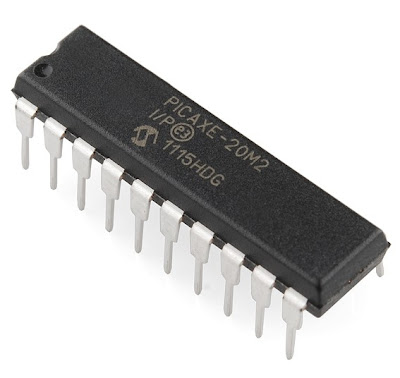
The PICAXE 20M2 is a low cost microcontroller (less than $4) that is easy to program for this application. To control five motors we need 10 outputs; two outputs for each of the five motors. The PICAXE 20M2 has 18 outputs and that is plenty.
-----
Notice how the PICAXE 20M2 legs are labeled; b.7, b.6, etc. The drawing below shows how to wire up the whole system. It shows where to wire power and ground. It shows where wire the motors. It shows where to wire in the PIXACE 20M2 so it will work with the program source code below.
Again, notice nothing is connected to " upper" portion of the SN754410NE motor driver on the far right. Good engineering practice would say the inputs (Leg 10 and Leg 15) should be tied to ground. But, we aren't designing for a Mars rover or anything critical, so everything should be fine. As a general rule leaving inputs floating can lead to a risky design.

The PICAXE 20M2 is programmed (again, example source code below) to control the direction of each motor. From above we know that varying the condition of the SN754410NE motor driver IC inputs has a resulting spin on the motor. The source code for the PICAXE 20M2 simply forces the two SN754410NE motor driver IC inputs high and/or low to make the robot motor spin in the desired direction. High/Low will spin the motor one way. Low/High will spin the motor the other way. The PICAXE 20M2 output conditions are held static in the source code with the PAUSE command to determine how long the motor will spin. If the PICAXE 20M2 is programmed to output High/High or Low/Low the motor will stop moving.
----
Let's wrap this up. These wires connect to the five motors on the OWI robot:
These are the wires that go to straight to the SN754410NE motor driver ICs. If you connect these wires straight to Power and Ground you can document which connector wires control what motor and in what direction.
-----
After you wire the PICAXE 20M2 to the SN754410NE motor driver ICs your breadboard will look something like this:

-----
Add in the wires from OWI Robot motors and your done with the hardware. It will look like this:
-----
Picture of the final build with everything wired in:
-----
A short video demo of all five motors being controlled on the OWI Robot. Be aware that the motors can pull over 500mA each. Running several motors at once can demand a lot of current, so if your design doesn't work suspect the power supply may not have enough output current.
----
A below is source code for the PICAXE 20M2 to make it all work. Basically, the PICAXE 20M2 outputs are set HIGH and/or LOW to control the motors. A PAUSE statement determines how long that motor should stay on. Both outputs LOW stop the motor movement. It is possible to move more than one motor at a time if you have a 5VDC power source that can supply enough current. In the example below all motors are excerised one at a time. The code can be modified to make the OWI Robot dance to your wishes:

; *************************************
; ***** www.whiskeytangohotel.com *****
; *************************************
; Project Name: OWI Robot Arm "Nancy"
;
; Start Date: DEC 2011
;
; Program Rev History:
;
;
; *******************************
; PICAXE PE Rev: MacAXEPad 1.3.2
;

#picaxe20m2

'Define the outputs to be discriptive
symbol Grip_Close = b.0
symbol Grip_Open = b.1


symbol Wrist_Up = b.2
symbol Wrist_Down = b.3

symbol Elbow_Up = b.4
symbol Elbow_Down = b.5

symbol Shoulder_Out = b.6
symbol Shoulder_In = b.7

symbol Base_CCW = c.0
symbol Base_CW = c.1

'Subroutine move commands are:
' GripOPEN GripCLOSE GripSTOP
' WristUP WristDOWN WristSTOP
' ElbowUP ElbowDOWN ElbowSTOP
' ShoulderIN ShoulderOUT ShoulderSTOP
' BaseCCW BaseCW BaseSTOP
' StopAll
' (motion referenced from behind the robot


main:

gosub WristDOWN
gosub StopALL
pause 1000
gosub WristUP
gosub WristUP
gosub StopALL
pause 1000

gosub ElbowDown
gosub StopALL
pause 1000
gosub ElbowUP
gosub StopALL
pause 1000

gosub GripOPEN
gosub GripCLOSE
pause 1000
gosub GripOPEN
gosub GripCLOSE
gosub StopALL
pause 1000

gosub ShoulderIN
gosub StopALL
pause 1000

gosub GripOPEN
gosub GripCLOSE
pause 1000
gosub GripOPEN
gosub GripCLOSE
gosub StopALL
pause 1000

gosub ShoulderOUT
gosub StopALL
pause 1000

gosub BaseCCW
gosub StopALL
pause 1000
gosub BaseCW
gosub BaseCW
gosub StopALL
pause 1000
gosub BaseCCW
gosub StopALL
pause 1000

gosub GripOPEN
gosub GripCLOSE
pause 1000
gosub GripOPEN
gosub GripCLOSE
gosub StopALL
pause 1000

gosub WristDown
gosub StopALL

goto main
' ------GRIP------
GripOPEN:
high Grip_Open
low Grip_Close
pause 1000
return 'GripOpen

GripCLOSE:
low Grip_Open
high Grip_Close
pause 1000
return 'GripClose

GripSTOP:
low Grip_Open
low Grip_Close
return 'GripStop
'-----------------

'------WRIST------
WristUP:
high Wrist_Up
low Wrist_Down
pause 1800
return 'WristUp

WristDOWN:
low Wrist_Up
high Wrist_Down
pause 1800
return 'WristDown

WristSTOP:
low Wrist_Up
low Wrist_Down
return 'WristStop
'------------------

'------ELBOW------
ElbowUP:
high Elbow_Up
low Elbow_Down
pause 3000
return 'ElbowUp


ElbowDOWN:
low Elbow_Up
high Elbow_Down
pause 3000
return 'ElbowDown

ElbowSTOP:
low Elbow_Up
low Elbow_Down
return 'ElbowStop
'------------------

'------SHOULDER------
ShoulderIN:
high Shoulder_Out
low Shoulder_In
pause 2500
return 'ShoulderUp

ShoulderOUT:
low Shoulder_Out
high Shoulder_In
pause 2500
return 'ShoulderDown

ShoulderSTOP:
low Shoulder_Out
low Shoulder_In
return 'ShoulderStop
'------------------

'------BASE------
BaseCCW:
high Base_CCW
low Base_CW
pause 3000
return 'BaseCCW

BaseCW:
low Base_CCW
high Base_CW
pause 3000
return 'BaseCW

BaseSTOP:
low Base_CCW
low Base_CW
return 'BaseStop
'------------------

'----StopAll-------
StopAll:
gosub GripStop
gosub WristStop
gosub ElbowStop
gosub ShoulderStop
gosub BaseStop
return 'StopAll
'----------------