Showing posts with label RasPI. Show all posts

Thursday, January 23, 2025

Easy Graphing of Temperatures with RasPI and NodeRed

-----

After hearing over and over how quick and easy the graphical programming environment for Node-Red was we decided to give it a try with an old Raspberry PI Model B that was 'resting' in a drawer.   Conclusion:  It's easy; it's really really easy.   Plus, there is a large user base that has created examples and libraries for just about any application you can dream up.

-----
Node-Red is free and the install is easy and well documented on their website.  For our Node-Red experiment we decide to graph the ambient air temperature as measured by a DS18B20 and the CPU core temperature of the Raspberry PI Model B.   Connect the DS18B20 sensor like this:

-----

It didn't take us long at all to 'noodle' up this:

-----

Then we went into the "Layout" tab to format what the graphs would look like:

----

All in all the project, including the Node-Red install; was probably under two hours.  That's pretty damn quick for going from zero knowledge to serving up nice graphs.

-----

Importing or Exporting code is easy as well.  It's basically "copy/past".  Here is our code for the project:

[
    {
        "id": "018abb4b7bfb7e86",
        "type": "exec",
        "z": "c0bb5756099d6dbc",
        "command": "vcgencmd measure_temp",
        "addpay": false,
        "append": "",
        "useSpawn": "false",
        "timer": "",
        "oldrc": false,
        "name": "Get CPU Temp",
        "x": 420,
        "y": 40,
        "wires": [
            [
                "05c0f7272e5bc7e0"
            ],
            [],
            []
        ]
    },
    {
        "id": "05c0f7272e5bc7e0",
        "type": "function",
        "z": "c0bb5756099d6dbc",
        "name": "Parse Temp",
        "func": "var tempC = parseFloat(msg.payload.replace('temp=', '').replace(\"'C\", ''));\nvar tempF = (tempC * 9/5) + 32;\nmsg.payload = tempF.toFixed(2);\nreturn msg;",
        "outputs": 1,
        "timeout": "",
        "noerr": 0,
        "initialize": "",
        "finalize": "",
        "libs": [],
        "x": 630,
        "y": 40,
        "wires": [
            [
                "7dfbce89f48de845",
                "d97496ad6fb77af6"
            ]
        ]
    },
    {
        "id": "7dfbce89f48de845",
        "type": "ui_chart",
        "z": "c0bb5756099d6dbc",
        "name": "",
        "group": "7",
        "order": 8,
        "width": 11,
        "height": 5,
        "label": "CPU (°F)",
        "chartType": "line",
        "legend": "false",
        "xformat": "HH:mm",
        "interpolate": "linear",
        "nodata": "",
        "dot": false,
        "ymin": "",
        "ymax": "",
        "removeOlder": "7",
        "removeOlderPoints": "10080",
        "removeOlderUnit": "86400",
        "cutout": 0,
        "useOneColor": false,
        "useUTC": false,
        "colors": [
            "#00b500",
            "#e6e600",
            "#ca3838",
            "#000000",
            "#000000",
            "#000000",
            "#000000",
            "#000000",
            "#000000"
        ],
        "outputs": 1,
        "useDifferentColor": false,
        "className": "",
        "x": 880,
        "y": 40,
        "wires": [
            []
        ]
    },
    {
        "id": "d97496ad6fb77af6",
        "type": "ui_gauge",
        "z": "c0bb5756099d6dbc",
        "name": "",
        "group": "7",
        "order": 7,
        "width": 5,
        "height": 5,
        "gtype": "donut",
        "title": "CPU (°F)",
        "label": "°F",
        "format": "{{value}}",
        "min": "110",
        "max": "175",
        "colors": [
            "#00b500",
            "#e6e600",
            "#ca3838"
        ],
        "seg1": "",
        "seg2": "",
        "diff": false,
        "className": "",
        "x": 880,
        "y": 80,
        "wires": []
    },
    {
        "id": "3b8516632c6153ec",
        "type": "debug",
        "z": "c0bb5756099d6dbc",
        "name": "DC18B20 Temp",
        "active": false,
        "tosidebar": true,
        "console": false,
        "tostatus": false,
        "complete": "payload",
        "targetType": "msg",
        "statusVal": "",
        "statusType": "auto",
        "x": 900,
        "y": 260,
        "wires": []
    },
    {
        "id": "e19a60a2f08ac386",
        "type": "inject",
        "z": "c0bb5756099d6dbc",
        "name": "Every 60 secs",
        "props": [],
        "repeat": "60",
        "crontab": "",
        "once": true,
        "onceDelay": "1",
        "topic": "",
        "x": 160,
        "y": 40,
        "wires": [
            [
                "018abb4b7bfb7e86"
            ]
        ]
    },
    {
        "id": "a3b79e7f7975fa73",
        "type": "ds18b20",
        "z": "c0bb5756099d6dbc",
        "name": "DS18B20",
        "sensorid": "28-089bd445e089",
        "timer": "1",
        "x": 380,
        "y": 220,
        "wires": [
            [
                "3d28949a3fa611d3"
            ]
        ]
    },
    {
        "id": "3d28949a3fa611d3",
        "type": "function",
        "z": "c0bb5756099d6dbc",
        "name": "C_to_F",
        "func": "var tempc = msg.payload;\nvar tempf = tempc * 9/5 + 32;\ntempf = tempf.toFixed(2);\nmsg.payload = tempf;\nreturn msg;",
        "outputs": 1,
        "timeout": 0,
        "noerr": 0,
        "initialize": "",
        "finalize": "",
        "libs": [],
        "x": 600,
        "y": 220,
        "wires": [
            [
                "3b8516632c6153ec",
                "61cf75a9eeeb79be",
                "e146810a6d814e42"
            ]
        ]
    },
    {
        "id": "e146810a6d814e42",
        "type": "ui_chart",
        "z": "c0bb5756099d6dbc",
        "name": "",
        "group": "7",
        "order": 3,
        "width": 11,
        "height": 9,
        "label": "°F",
        "chartType": "line",
        "legend": "false",
        "xformat": "HH:mm",
        "interpolate": "linear",
        "nodata": "",
        "dot": false,
        "ymin": "",
        "ymax": "",
        "removeOlder": "7",
        "removeOlderPoints": "10080",
        "removeOlderUnit": "86400",
        "cutout": 0,
        "useOneColor": false,
        "useUTC": false,
        "colors": [
            "#00b500",
            "#e6e600",
            "#ca3838",
            "#000000",
            "#000000",
            "#000000",
            "#000000",
            "#000000",
            "#000000"
        ],
        "outputs": 1,
        "useDifferentColor": false,
        "className": "",
        "x": 870,
        "y": 180,
        "wires": [
            []
        ]
    },
    {
        "id": "61cf75a9eeeb79be",
        "type": "ui_gauge",
        "z": "c0bb5756099d6dbc",
        "name": "",
        "group": "7",
        "order": 2,
        "width": 5,
        "height": 9,
        "gtype": "donut",
        "title": "Ambient (°F)",
        "label": "°F",
        "format": "{{value}}",
        "min": "80",
        "max": "110",
        "colors": [
            "#00b500",
            "#e6e600",
            "#ca3838"
        ],
        "seg1": "",
        "seg2": "",
        "diff": false,
        "className": "",
        "x": 890,
        "y": 220,
        "wires": []
    },
    {
        "id": "cc4248afd8356380",
        "type": "debug",
        "z": "c0bb5756099d6dbc",
        "name": "debug 1",
        "active": false,
        "tosidebar": true,
        "console": false,
        "tostatus": false,
        "complete": "false",
        "statusVal": "",
        "statusType": "auto",
        "x": 880,
        "y": 400,
        "wires": []
    },
    {
        "id": "1553124d816901d2",
        "type": "inject",
        "z": "c0bb5756099d6dbc",
        "name": "",
        "props": [
            {
                "p": "payload"
            },
            {
                "p": "topic",
                "vt": "str"
            }
        ],
        "repeat": "1",
        "crontab": "",
        "once": false,
        "onceDelay": 0.1,
        "topic": "",
        "payload": "",
        "payloadType": "date",
        "x": 170,
        "y": 360,
        "wires": [
            [
                "cc4248afd8356380",
                "6f3d2d25b6ad464e"
            ]
        ]
    },
    {
        "id": "6f3d2d25b6ad464e",
        "type": "ui_digital_clock",
        "z": "c0bb5756099d6dbc",
        "name": "",
        "group": "7",
        "order": 5,
        "width": 4,
        "height": 1,
        "x": 890,
        "y": 360,
        "wires": []
    },
    {
        "id": "7",
        "type": "ui_group",
        "name": "RasPI-3B",
        "tab": "6",
        "order": 1,
        "disp": true,
        "width": 16,
        "collapse": false,
        "className": ""
    },
    {
        "id": "6",
        "type": "ui_tab",
        "name": "Home",
        "icon": "dashboard",
        "order": 1
    }
]

-----

Monday, April 29, 2024

Where is the ISS? [Rasberry Pi version]


-----

It all started out simple enough... We were just curious how Orbital Files and Kepler Elements are use to define the current and predicted locations of a satellite.  One thing leads to another and the result was an International Space Station tracker.  Sure, it's been done before but you can learn a few things when you do it yourself.

-----

For example, we wrote the Python3 program on our own and then decided we would see how ChatGPT would handle the problem.   Turns out we were a lot faster at the task than the ChatGPT AI.  ChatGPT would finally get there, but it seemed error prone.  Still, impressively ChatGPT finally got to a solution after a TON of help from us.  But... we did like some of the things ChatGPT did better.  For example, the ChatGPT routine to translate compass degrees to a cardinal direction was better than ours.  So, in addition to learning about Orbital Files and Kelper Elements we learned a little about what ChatGPT is good and "less good" at.

-----

The project updates the location on the ISS for your location every ten seconds.  If the ISS is above the horizon a LED flashes to let you know.  The whole enchilada is contained in a 3D Printed box.

Here's the result and we like it!

-----

The connection of the 16x2 LCD and the indicator LED are simple and pretty obvious from the pin names in the source code below.

-----

For those that may want to duplicate the build below is our Python3 source code:

# ISS Tracker
# Project details at: WhiskeyTangoHotel.Com
#                     APRIL 2024
#
# Raspberry PI 3.  Runs under Python3
#
# Show current Alt and Az of the ISS
# Results are displayed in the terminal and 1602 Line LCD
# LED Blinks when ISS is above horizon.

from datetime import datetime, timedelta
from skyfield.api import Topos, load
import os
import urllib.request
import time
import pytz
import smbus
import RPi.GPIO as GPIO
GPIO.setwarnings(False)
risefall = "Calculating..."   # Is the ISS getting closer or farther from the horizon
seconds_between_screens = 5  # How long to show the position and current time screen

# Set up the 16 x 2 Line I2C LCD
I2C_ADDR  = 0x27 # I2C device address
LCD_WIDTH = 16   # Maximum characters per line

LCD_CHR = 1 # Mode - Sending data
LCD_CMD = 0 # Mode - Sending command

LCD_LINE_1 = 0x80 # LCD RAM address for the 1st line
LCD_LINE_2 = 0xC0 # LCD RAM address for the 2nd line

LCD_BACKLIGHT  = 0x08  # On
# LCD_BACKLIGHT = 0x00  # Off

ENABLE = 0b00000100 # Enable bit

# Timing constants
E_PULSE = 0.0005
E_DELAY = 0.0005

# Open I2C interface
bus = smbus.SMBus(1) # Rev 2 Pi uses 1 RasPI(SXSW)

# LED pin to blink if ISS is above horizon
LED_PIN = 17  

def setup_led():
    GPIO.setmode(GPIO.BCM)
    GPIO.setup(LED_PIN, GPIO.OUT)

def led_on():
    GPIO.output(LED_PIN, GPIO.HIGH)

def led_off():
    GPIO.output(LED_PIN, GPIO.LOW)

def lcd_init():
    # Initialise display
    lcd_byte(0x33,LCD_CMD) # 110011 Initialise
    lcd_byte(0x32,LCD_CMD) # 110010 Initialise
    lcd_byte(0x06,LCD_CMD) # 000110 Cursor move direction
    lcd_byte(0x0C,LCD_CMD) # 001100 Display On,Cursor Off, Blink Off
    lcd_byte(0x28,LCD_CMD) # 101000 Data length, number of lines, font size
    lcd_byte(0x01,LCD_CMD) # 000001 Clear display
    time.sleep(E_DELAY)

def lcd_byte(bits, mode):
    # Send byte to data pins
    # bits = the data
    # mode = 1 for data
    #        0 for command

    bits_high = mode | (bits & 0xF0) | LCD_BACKLIGHT
    bits_low = mode | ((bits<<4) & 0xF0) | LCD_BACKLIGHT

    # High bits
    bus.write_byte(I2C_ADDR, bits_high)
    lcd_toggle_enable(bits_high)

    # Low bits
    bus.write_byte(I2C_ADDR, bits_low)
    lcd_toggle_enable(bits_low)

def lcd_toggle_enable(bits):
    # Toggle enable
    time.sleep(E_DELAY)
    bus.write_byte(I2C_ADDR, (bits | ENABLE))
    time.sleep(E_PULSE)
    bus.write_byte(I2C_ADDR,(bits & ~ENABLE))
    time.sleep(E_DELAY)

def lcd_string(message,line):
    # Send string to display
    message = message.ljust(LCD_WIDTH," ")
    lcd_byte(line, LCD_CMD)

    for i in range(LCD_WIDTH):
        lcd_byte(ord(message[i]),LCD_CHR)

# We set up to view the ISS with Austin, Texas coordinates
austin = Topos(latitude=30.35307, longitude=-97.85726)

# URL to fetch TLE data
tle_url = 'https://www.celestrak.com/NORAD/elements/stations.txt'

# Let's do self-test on the LCD and the LED
lcd_init()

# Center the text for line 1
alt_text = "ISS TRACKER"
print("ISS TRACKER")
spaces = (LCD_WIDTH - len(alt_text)) // 2
alt_text = " " * spaces + alt_text
lcd_string(alt_text, LCD_LINE_1)

# Flash LED self-test
setup_led()

for _ in range(5):  # Flash LED
    # Center the text for line 2
    az_text = "Starts in " + str(5 - _) + "..."
    print("Starts in " + str(5 - _) + "...")
    spaces = (LCD_WIDTH - len(az_text)) // 2
    az_text = " " * spaces + az_text
    lcd_string(az_text, LCD_LINE_2)
    led_on()
    time.sleep(0.5)  # LED on for 0.5 seconds
    led_off()
    time.sleep(0.5)  # LED off for 0.5 seconds
GPIO.cleanup()

print(" ")

last_altitude = None  # Variable to store the previous altitude

while True:  # Loop forever...
    # Initialise display
    lcd_init()

    # Check if the TLE data file exists
    if not os.path.exists('stations.txt'):
        # If it doesn't exist, download it
        urllib.request.urlretrieve(tle_url, 'stations.txt')

    # Get the last modified time of the TLE data file
    last_modified = datetime.fromtimestamp(os.path.getmtime('stations.txt'))

    # Check if 12 hours have passed since the last update
    if datetime.now() - last_modified > timedelta(hours=12):
        # If it is too old, update the TLE data file
        urllib.request.urlretrieve(tle_url, 'stations.txt')

    # Load the updated ISS TLE data
    satellites = load.tle_file('stations.txt')
    iss = satellites[0]  # Accessing the first element which contains the ISS data

    # Get the current time
    ts = load.timescale()
    current_time = ts.now()

    # Get the position of the ISS relative to Austin, Texas
    difference = iss - austin
    topocentric = difference.at(current_time)
    alt, az, distance = topocentric.altaz()
    
    #alt.degrees = 73  # For debug only.  Comment for normal use
    
    # Print the current time and date in Austin
    austin_time = current_time.astimezone(pytz.timezone('America/Chicago'))
    print(austin_time.strftime("%A"), austin_time.strftime("%m-%d-%Y %H:%M:%S %Z"))
    print("--------------------------------------")
    
    # Print altitude and azimuth of the ISS as integers
    print("ISS altitude: " + str(int(alt.degrees)) + "\u00b0")
    
    
    # Convert azimuth to cardinal compass direction
    compass_directions = ['N', 'NNE', 'NE', 'ENE', 'E', 'ESE', 'SE', 'SSE', 'S', 'SSW', 'SW', 'WSW', 'W', 'WNW', 'NW', 'NNW']
    compass_index = round(az.degrees / (360. / len(compass_directions)))
    compass = compass_directions[int(compass_index) % len(compass_directions)]
    #print("Cardinal direction: " + compass)
    print(" ISS azimuth: " + str(int(az.degrees)) + "\u00b0" + " <" + compass + ">")
    
    # Check if the altitude is increasing or decreasing
    if last_altitude is not None:
        if alt.degrees > last_altitude:
            risefall = "RISING"
        elif alt.degrees < last_altitude:
            risefall = "FALLING"
        else:
            risefall = "STABLE"
            
    #risefall = "RISING" # For debug only.  Comment for normal use
            
    print("              " + risefall)
    last_altitude = alt.degrees  # Update the last altitude
    
    print(" ")

    # Display on LCD
    lcd_init()

    # Center the text for line 1
    alt_text = "Alt " + str(int(alt.degrees)) + " deg @"
    spaces = (LCD_WIDTH - len(alt_text)) // 2
    alt_text = " " * spaces + alt_text
    lcd_string(alt_text, LCD_LINE_1)

    # Center the text for line 2
    az_text = str(int(az.degrees)) + " deg <" + compass + ">"
    spaces = (LCD_WIDTH - len(az_text)) // 2
    az_text = " " * spaces + az_text
    lcd_string(az_text, LCD_LINE_2)

    # Flash LED if altitude is positive
    setup_led()
    if alt.degrees > 0:
        for _ in range(seconds_between_screens):  # Flash LED
            led_on()
            time.sleep(0.5)  # LED on for 0.5 seconds
            led_off()
            time.sleep(0.5)  # LED off for 0.5 seconds
    else:
        led_off()
        time.sleep(seconds_between_screens)
    
    # Date/Time on LCD briefly
    lcd_init()
    
    if alt.degrees > 0:
        led_on()  # LED on is ISS UP while Day/Time display

    # Center the text for line 1
    #alt_text = austin_time.strftime("%A")  # Show the DOW
    alt_text = risefall  # Rising or Falling?
    spaces = (LCD_WIDTH - len(alt_text)) // 2
    alt_text = " " * spaces + alt_text
    lcd_string(alt_text, LCD_LINE_1)

    # Center the text for line 2
    az_text = austin_time.strftime("%H:%M:%S %Z")  # Show the local time
    spaces = (LCD_WIDTH - len(az_text)) // 2
    az_text = " " * spaces + az_text
    lcd_string(az_text, LCD_LINE_2)   
    
    # Flash LED if altitude is positive
    setup_led()
    if alt.degrees > 0:
        for _ in range(seconds_between_screens):  # Flash LED
            led_on()
            time.sleep(0.5)  # LED on for 0.5 seconds
            led_off()
            time.sleep(0.5)  # LED off for 0.5 seconds
    else:
        led_off()
        time.sleep(seconds_between_screens)
    
    time.sleep(0.1)  # tiny delay before cleanup to ensure the LED is off
    GPIO.cleanup()
-----

Saturday, May 27, 2023

HamAlert.Org Integration with Pimoroni Galactic Unicorn


-----

The Pimoroni Galactic Unicorn is a cool piece of kit that we have had our eye on for a while.  The item is popular and sells out quickly, but we finally got our hands on one.  Summary:  It's awesome!  After the initial "WOW!" factor diminished we went in search of a project for it.

-----

The answer was obvious.  How many times are you sitting comfortably in your home theater room with the family and you miss a Morse Code CQ from one of your ham radio friends?  That's what we thought, so we set out to solve that inconvenient and irritating problem!

-----

The project needs a WiFi connection for the Pimoroni Galactic Unicorn.  No ham radio or RF access to the ham bands are needed.  

Steps:

    - Buy a Pimoroni Galactic Unicorn and set it up to run MicroPython.

    - Create a HamAlert account and set up some triggers for the ham operators of interest.  You will need to select the "telnet" reporting option in the trigger menu.

    - Copy/Paste our MicroPython source code below into the Pimoroni Galactic Unicorn. We used Thonny as our development environment.  Name the program "main.py" so it will autostart at bootup.

    - Place the rig under that big screen TV in the home theater room.  Simply wait for your movie or favorite show to be interrupted letting you know it's time to drop everything and fire up your ham radio for a QSO!

-----

Here is a live demo of the setup.  What happens is:

    - K5JM, who is in my HamAlert triggers is spotted calling CQ.

    - The Pimoroni Galactic Unicorn is logged into and monitoring the HamAlert telenet server.

    - We parse the response of the HamAlert telnet server and display the information we want on the LED matrix.

    - Of course, we answer K5JM.  Success!!!  Next we return to the home theater room and await the next interruption.


 -----

Source code below:

 '''
Morse Alert
MAY2023
WhiskeyTangoHotel.Com

This program displays your individual hamalert.org telnet CW triggers
onto the display of the Raspberry PI PicoW based Pimoroni Galactic Unicorn.
Thanks HamAlert.Org by Manuel Kasper (HB9DQM) for their telnet service!

CW CQ info shown is "Callsign", "Frequency", and "WPM", but other options are available.
The text is color coded by band.
Scroll speed and total display variables are adjustable.
Alert 'chirp' is adjustable.

A CW beacon, such as WR5U which transmits about every 30 minutes,
may be a suggested hamalert telnet trigger to avoid timeouts from the
hamalert.org server.

NOTE: Does not work with hamalert.org simulated triggers

'''


#Variable set up:
wifi_ssid = "wifi_ssid"
wifi_password =  "wifi_password"

# hamalert.org login info
username = "telnet_username"
password = "telnet_passord"
telnetaddr = "hamalert.org"  # "telnetaddress.com"
port = 7300    # port as a number, not a string

from galactic import GalacticUnicorn
gu = GalacticUnicorn()

# Set up speaker for a sweeping 'chirp' alert
volume = .5 # range is 0 to 1.  0 = For no sound
start_tone = 500 #500 is a good start  Adjust to suit.
end_tone = 1000  #1000 is a good start.  Adjust to suit.
channels = [gu.synth_channel(i) for i in range(1)]

waitmsg = "HamAlert..."
howbright = 0.1 # value range 0.0 to 1.0
dwelltime = 5 # how many seconds to display Callsign, Freq, WPM
tot_time = 60 # how long (seconds) to cycle this info

utc_offset = -5 # we print to screen (not to LEDs the zulu and local time)

import network
import usocket as socket
import time
import utime

from picographics import PicoGraphics, DISPLAY_GALACTIC_UNICORN
graphics = PicoGraphics(display=DISPLAY_GALACTIC_UNICORN)

#Define some colours
BLACK = graphics.create_pen(0, 0, 0)
RED =  graphics.create_pen(255, 0, 0)
YELLOW = graphics.create_pen(255, 255, 0)
GREEN = graphics.create_pen(0, 255, 0)
CYAN =  graphics.create_pen(0, 255, 255)
BLUE =  graphics.create_pen(0, 0, 255)
MAGENTA =  graphics.create_pen(255, 0, 255)
WHITE =  graphics.create_pen(200, 200, 200)
GREY =  graphics.create_pen(100, 100, 100)
DRKGRY =  graphics.create_pen(50, 50, 50)
FREQCOLOR = WHITE  # this is the text color that will change per band
waitmsgcolor =  GREY  # number, not a string

# create a PicoGraphics framebuffer to draw into
graphics = PicoGraphics(display=DISPLAY_GALACTIC_UNICORN)
gu.set_brightness(howbright)

#Create a single wlan object and use as a global for all net calls
wlan = network.WLAN(network.STA_IF)

wlan.active(True)
wlan.connect(wifi_ssid, wifi_password)

# Wait for connect success or failure
max_wait = 100
while max_wait > 0:
    if wlan.status() < 0 or wlan.status() >= 3:
        break
    max_wait -= 1
    wifistat = 'WiFi...' + str(100-max_wait)
    if max_wait == 0:
        wifistat = "WiFi fail"
    print(wifistat)
    width = graphics.measure_text(wifistat, 1)
    startplace = int(float(GalacticUnicorn.WIDTH) - width) / 2
    # clear the graphics object
    graphics.set_pen(BLACK)
    graphics.clear()
    # draw the text
    graphics.set_pen(waitmsgcolor)
    graphics.text(wifistat, round(startplace), 2, -1, 0.55);    
    # update the display
    gu.update(graphics)
    time.sleep(.5)
    
if max_wait > 0:
    print("WIFI OK!")
    width = graphics.measure_text('WIFI OK!', 1)
    startplace = int(float(GalacticUnicorn.WIDTH) - width) / 2
    # clear the graphics object
    graphics.set_pen(BLACK)
    graphics.clear()
    # draw the text
    graphics.set_pen(waitmsgcolor)
    graphics.text('WIFI OK!', round(startplace), 2, -1, 0.55);    
    # update the display
    gu.update(graphics)    
    time.sleep(5)

# Connect to the telnet server
tn = socket.socket()
addr = socket.getaddrinfo(telnetaddr, port)[0][-1]
tn.connect(addr)

# Log in with the username and password to telnet server
tn.send(username + "\r\n")
tn.send(password + "\r\n")

last_spot = utime.time()  # we track/print time between spots

# Read and process the telnet server response
while True:
    data = tn.recv(1024)
    data = data.decode("utf-8")
    print(data)
    
    # Center "waitmsg"
    width = graphics.measure_text(waitmsg, 1)
    startplace = int(float(GalacticUnicorn.WIDTH) - width) / 2
    # clear the graphics object
    graphics.set_pen(BLACK)
    graphics.clear()
    # draw the text
    graphics.set_pen(waitmsgcolor)
    graphics.text(waitmsg, round(startplace), 2, -1, 0.55);    
    # update the display
    gu.update(graphics)

    # Play 'connected' Chirp alert
    for tone in range(start_tone, end_tone):
        channels[0].play_tone(tone, volume)
        gu.play_synth()
        time.sleep(.0009)
    gu.stop_playing()
    
    if "DX de" in data:
        #print(data)
                
        # Split the string into a list of values
        data_list = data.split()
        
        # Assign each value to separate variables
        dx = data_list[0]
        de = data_list[1]
        spotter = data_list[2]
        freq = data_list[3]
        spotted = data_list[4]
        db = data_list[5]
        wpm = data_list[6]
        zulu = data_list[7]

        # Print the values of the variables
        print("HamAlert returns:")
        #print('dx:', dx )
        #print('de:', de)
        #print('spotter:', spotter)
        print('Freq:', freq)
        print('Spotted:', spotted)
        #print('db:', db)
        print('WPM:', wpm)
        #print('zulu:', zulu)
        
        #Convert zulu to local
        hours = int(zulu[:2])
        minutes = int(zulu[2:4])     
        local_hours = hours + utc_offset
        local_minutes = minutes
        # If negative hour fix wraparound
        if local_hours < 0:
            local_hours += 24
        # Format to local timeg
        local_time = "{:02d}:{:02d}".format(local_hours, local_minutes)
        print('Local time:', local_time)
        #print('Minutes last spot:', int( (utime.time() - last_spot)/ 60)  )
        last_spot = utime.time()  # we track/print time between spots
        print('-------------------')
        print
        
        FREQCOLOR = WHITE
        band = float(freq)
        if 24890 <= band <= 24990:
            FREQCOLOR = CYAN # text color for 12 meter spots
        if 18068 <= band <= 18168:
            FREQCOLOR = BLUE # text color for 17 meter spots
        if 14000 <= band <= 14350:
            FREQCOLOR = MAGENTA  # text color for 20 meter spots          
        if 10100 <= band <= 10150:
            FREQCOLOR = RED # text color for 30 meter spots
        if 7000 <= band <= 7300:
            FREQCOLOR = YELLOW  # text color for 40 meter spots                  
        if 3500 <= band <= 4000:
            FREQCOLOR = GREEN # text color for 80 meter spots
        
        for x in range(0, int((tot_time/(dwelltime*3)))):
            # Center position of the text
            width = graphics.measure_text(spotted, 1)
            startplace = int(float(GalacticUnicorn.WIDTH) - width) / 2
            # clear the graphics object
            graphics.set_pen(BLACK)
            graphics.clear()
            # draw the text
            graphics.set_pen(FREQCOLOR)
            graphics.text(spotted, round(startplace), 2, -1, 0.55);
            # update the display
            gu.update(graphics)
            time.sleep(dwelltime)
            
            # Center position of the text
            width = graphics.measure_text(freq, 1)
            startplace = int(float(GalacticUnicorn.WIDTH) - width) / 2
            # clear the graphics object
            graphics.set_pen(BLACK)
            graphics.clear()
            # draw the text
            graphics.set_pen(FREQCOLOR)
            graphics.text(freq, round(startplace), 2, -1, 0.55);
            # update the display
            gu.update(graphics)            
            time.sleep(dwelltime)
            
            # Center position of the text
            width = graphics.measure_text(wpm, 1)
            startplace = int(float(GalacticUnicorn.WIDTH) - width) / 2
            # clear the graphics object
            graphics.set_pen(BLACK)
            graphics.clear()
            # draw the text
            graphics.set_pen(FREQCOLOR)
            graphics.text(wpm, round(startplace), 2, -1, 0.55);
            # update the display
            gu.update(graphics)
            time.sleep(dwelltime)
                
        #print(waitmsg)
       
        # Below if you want time of last spot shown.  This can help ID a telnet timeout.
        # See our reason for having a CW beacon comment at the very top.
        waitmsg = 'Last ' + local_time
        
        # This if you want the your pre-defined waitmsg after a spot
        #width = graphics.measure_text(waitmsg, 1)
        
        width = graphics.measure_text(waitmsg, 1)
        startplace = int(float(GalacticUnicorn.WIDTH) - width) / 2
        # clear the graphics object
        graphics.set_pen(BLACK)
        graphics.clear()
        # draw the text
        graphics.set_pen(waitmsgcolor)
        graphics.text(waitmsg, round(startplace), 2, -1, 0.55);
        # update the display
        gu.update(graphics)
-----


Saturday, July 30, 2022

@Cheerlights Project: Now with Sound

-----

We did a @cheerlights project that used a Raspberry PI Zero and a Blinkt! LED bar to keep track of the last eight color changes the cheerlights server received.  We put the rig in the garage and enjoyed the Blinkt! LED bar change color as The Internet masses dictated what rainbow of colors would be displayed.  But, that wasn't enough.  To control CheerLights, send a tweet to @cheerlights or include “cheerlights” somewhere in your message with the name of a color. for example, @CheerLights Paint the town red. [UPDATE: After The RocketMan took over Twitter the API no longer functions.  To learn more about how to control any cheerlights project, including this one, go to https://cheerlights.com/]

-----

The Amazon impulse buy AI suggested that our life could be complete only if we spent $7.99US on the DollaTEK DY-SV17F mini MP3 module and an idea was born.  What if, we added sound to the existing @cheerlights project and a short MP3 sound clip was played in addition to the LED color change?   If The Internet masses demand 'purple' we change an LED to 'purple' and play a clip from the song "Purple Rain".   'pink' would trigger "Pink Cadillac".  'red' triggers "Red Red Wine".  You get the idea....

-----

The DollaTEK DY-SV17F module has a UART mode to reduce the pins needed to control it, but the module is big on features and short on documentation for use with the Raspberry PI.   After not being able to get UART mode to work (probably user error) it was decided to use the plentiful GPIO pins on the Raspberry PI Zero and go with a parallel interface solution.   Here is a short video of the result: 

----- 

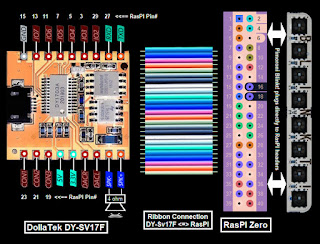
Connection was straightforward:


 The rig looked like this on the bench:

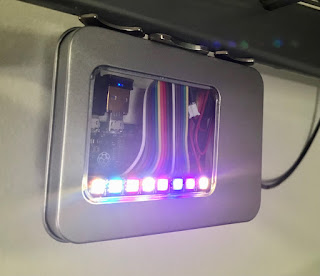
Packaged and mounted in the garage:

 
-----

For the rig to work the two python programs below run on the RasPI at the same time; cheerlights.py and cheerlights_sound.py.

-----

The cheerlights.py source code below updates the LEDs on the Blinkt! LED bar:

 #!/usr/bin/env python

# Cheerlights with Pimoroni BlinkT module and RasPI Zero
#
# A tweet to @Cheerlights will change the LEFT most color of the BlinkT (LED#7)
# Color history maintained by shifting old color to the RIGHT (LED#0)

# Valid color tweets to @Cheerlights are:
# RED GREEN BLUE CYAN WHITE OLDLACE PURPLE MAGENTA YELLOW ORANGE PINK
#
# Project details at:
# WhiskeyTangoHotel.Com
#
# MARCH 2022
# JULY 2022 add DollaTek DY-SV17F to play sound clip pwr color as independent and seperate program
#

import time
import sys

try:
    import requests  #  needed to poll @Cheerlights
except ImportError:
    exit("Install needed to run. Use the command: sudo pip install requests")

from blinkt import set_clear_on_exit, set_pixel, show, set_brightness, clear # https://shop.pimoroni.com/products/blinkt#

LED_delay = 0.5
brightness = 0.1 # 0.05 is lowest useable dim.  1.0 is full bright (the BLINKT is *really* bright if you want!)

#Set up a matrix for r, g, b values (m stands for matrix)
rm = [0,1,2,3,4,5,6,7,8]
gm = [0,1,2,3,4,5,6,7,8]
bm = [0,1,2,3,4,5,6,7,8]

# set_pixel(pixel_no, red, green, blue, brightness)

print "Testing LEDs..."
print "---------------------------------------------"
for i in range(3):
    for j in range (0,8):
        set_pixel(j, 30, 0, 0, brightness)
    print "RED"
    show()
    time.sleep(LED_delay)
    for j in range (0,8):
        set_pixel(j, 0, 30, 0, brightness)
    print "GREEN"
    show()
    time.sleep(LED_delay)
    for j in range (0,8):
        set_pixel(j, 0, 0, 30, brightness)
    print "BLUE"
    show()
    time.sleep(LED_delay)

    # all LEDs off
    for j in range (0,8):
        set_pixel(j, 0, 0,0)
    show()
print "LED Self test complete!"

for j in range (0,8): # set values that we know are 'wrong' to enter main loop
    rm[j] = 73.73
    gm[j] = 73.73
    bm[j] = 73.73
print " "

while True:
    try:
        r = requests.get('http://api.thingspeak.com/channels/1417/field/2/last.json')
        col = r.json()['field2']
        r, g, b = tuple(ord(c) for c in col[1:].lower().decode('hex'))
        time.sleep(5)  # delay until we look for a new color change


        if (r != rm[7]) or (g != gm[7]) or (b != bm[7]):  # new color selected
            print "New color placed far LEFT.  Shift old colors RIGHT one place"
            for j in range (0,7): #shift in the new values
                rm[j] = rm[j+1]
                gm[j] = gm[j+1]
                bm[j] = bm[j+1]               
                set_pixel(j, rm[j], gm[j], bm[j], brightness)
                show()
                time.sleep(LED_delay) # show change as a sweep

            rm[7] = r
            gm[7] = g
            bm[7] = b
            set_pixel(7, rm[7], gm[7], bm[7], brightness)
            show()
    
    # All LED off on control C
    except KeyboardInterrupt:
        print("stopping ...")
        sys.exit(0)
    except:
        time.sleep(1)
-----

The cheerlights_sound.py source code below runs the DollaTEK DY-SV17F:


# Cheerlights with DY-SV17F module for sound and RasPI Zero
#
# A tweet to @Cheerlights will play sound file

# Valid color tweets to @Cheerlights are:
# RED GREEN BLUE CYAN WHITE OLDLACE PURPLE MAGENTA YELLOW ORANGE PINK
#
# Project details at:
# WhiskeyTangoHotel.Com
#
# MARCH 2022
# JULY 2022 add DollaTek DY-SV17F to play sound clip pwr color as independent and seperate program
#

# DallaTEK DY-SV17F Files mapped to Cheerlights color.  MP3s vary from ~10-30 secs
# 00001.mp3 = red (red red wine)
# 00002.mp3 = green (green green gras of home)
# 00003.mp3 = blue (blue bayoe)
# 00004.mp3 = cyan (call me cyan)
# 00005.mp3 = white (whiter shade of pale)
# 00006.mp3 = oldlace (leather and lace)
# 00007.mp3 = purple (purple rain [of course])
# 00008.mp3 - magenta (some song calll 'magenta')
# 00009.mp3 = yellow (yellow submarine)
# 00010.mp3 = orange (orange crush)
# 00011.mp3 = pink (pink cadi)
# 00012.mp3 = start speaker test file (start me up)

import time
import requests  #  needed to poll @Cheerlights

import RPi.GPIO as GPIO
GPIO.setmode(GPIO.BOARD) # to use Raspberry PI board pin numbers

#Define some pins and vars
IO_0 = 31
IO_1 = 29
IO_2 = 3
IO_3 = 5
IO_4 = 7
IO_5 = 11
IO_6 = 13
IO_7 = 15

CON_1 = 19
CON_2 = 21
CON_3 = 23

current_color_mp3 = "clear" # set color value that we know is 'wrong' to enter main loop
delta_time = 0 # track seconds since last color change

#Setup the GPIO and make sure the speaker is OFF

GPIO.setwarnings(False)  # To disable warnings.
GPIO.setup(IO_0, GPIO.OUT)
GPIO.setup(IO_1, GPIO.OUT)
GPIO.setup(IO_2, GPIO.OUT)
GPIO.setup(IO_3, GPIO.OUT)
GPIO.setup(IO_4, GPIO.OUT)
GPIO.setup(IO_5, GPIO.OUT)
GPIO.setup(IO_6, GPIO.OUT)
GPIO.setup(IO_7, GPIO.OUT)

GPIO.setup(CON_1, GPIO.OUT)
GPIO.setup(CON_2, GPIO.OUT)
GPIO.setup(CON_3, GPIO.OUT)   #HIGH = speaker sound.  LOW = sound off

GPIO.output(CON_1, GPIO.LOW)
GPIO.output(CON_2, GPIO.LOW)
GPIO.output(CON_3, GPIO.LOW) #HIGH = speaker sound.  LOW = sound off

# Test the speaker at startup
print "Testing speaker..."
GPIO.output(CON_3, GPIO.HIGH) # turn ON the speaker   

GPIO.output(IO_0, GPIO.HIGH)
GPIO.output(IO_1, GPIO.HIGH)
GPIO.output(IO_2, GPIO.LOW)
GPIO.output(IO_3, GPIO.LOW)
GPIO.output(IO_4, GPIO.HIGH)
GPIO.output(IO_5, GPIO.HIGH)
GPIO.output(IO_6, GPIO.HIGH)
GPIO.output(IO_7, GPIO.HIGH)
time.sleep(5)   # secs in this mp3
GPIO.output(CON_3, GPIO.LOW) # turn OFF the speaker
print "Speaker test complete!"
print

while True: # main loop
    # ID the Color and Play the MP3 file asscd with that color
    r = requests.get('http://api.thingspeak.com/channels/1417/field/1/last.json')
    color_mp3 = r.json()['field1']
    #color_mp3 = "pink"   # override color_mp3 var for debug.
    print str(delta_time * 5) + " seconds spent waiting for color change..."
    time.sleep(5)  # delay until we look for a new color change
    delta_time = delta_time + 1
    
    if (color_mp3 != current_color_mp3):  # new color selected
        current_color_mp3 = color_mp3
        delta_time = 0
        print color_mp3 + " found and..."

        if (color_mp3 == "red"): #  is 00001.mp3
            GPIO.output(CON_3, GPIO.HIGH) # turn ON the speaker   
           
            GPIO.output(IO_0, GPIO.LOW)
            GPIO.output(IO_1, GPIO.HIGH)
            GPIO.output(IO_2, GPIO.HIGH)
            GPIO.output(IO_3, GPIO.HIGH)
            GPIO.output(IO_4, GPIO.HIGH)
            GPIO.output(IO_5, GPIO.HIGH)
            GPIO.output(IO_6, GPIO.HIGH)
            GPIO.output(IO_7, GPIO.HIGH)
            time.sleep(19)   # secs in this mp3
            GPIO.output(CON_3, GPIO.LOW) # turn OFF the speaker

        if (color_mp3 == "green"): #  is 00002.mp3
            GPIO.output(CON_3, GPIO.HIGH) # turn ON the speaker   
           
            GPIO.output(IO_0, GPIO.HIGH)
            GPIO.output(IO_1, GPIO.LOW)
            GPIO.output(IO_2, GPIO.HIGH)
            GPIO.output(IO_3, GPIO.HIGH)
            GPIO.output(IO_4, GPIO.HIGH)
            GPIO.output(IO_5, GPIO.HIGH)
            GPIO.output(IO_6, GPIO.HIGH)
            GPIO.output(IO_7, GPIO.HIGH)
            time.sleep(33)   # secs in this mp3
            GPIO.output(CON_3, GPIO.LOW) # turn OFF the speaker
           
        if (color_mp3 == "blue"): #  is 00003.mp3
            GPIO.output(CON_3, GPIO.HIGH) # turn ON the speaker   
           
            GPIO.output(IO_0, GPIO.LOW)
            GPIO.output(IO_1, GPIO.LOW)
            GPIO.output(IO_2, GPIO.HIGH)
            GPIO.output(IO_3, GPIO.HIGH)
            GPIO.output(IO_4, GPIO.HIGH)
            GPIO.output(IO_5, GPIO.HIGH)
            GPIO.output(IO_6, GPIO.HIGH)
            GPIO.output(IO_7, GPIO.HIGH)
            time.sleep(20)   # secs in this mp3
            GPIO.output(CON_3, GPIO.LOW) # turn OFF the speaker
           
        if (color_mp3 == "cyan"): #  is 00004.mp3
            GPIO.output(CON_3, GPIO.HIGH) # turn ON the speaker   
           
            GPIO.output(IO_0, GPIO.HIGH)
            GPIO.output(IO_1, GPIO.HIGH)
            GPIO.output(IO_2, GPIO.LOW)
            GPIO.output(IO_3, GPIO.HIGH)
            GPIO.output(IO_4, GPIO.HIGH)
            GPIO.output(IO_5, GPIO.HIGH)
            GPIO.output(IO_6, GPIO.HIGH)
            GPIO.output(IO_7, GPIO.HIGH)
            time.sleep(16)   # secs in this mp3
            GPIO.output(CON_3, GPIO.LOW) # turn OFF the speaker
           
        if (color_mp3 == "white"): #  is 00005.mp3
            GPIO.output(CON_3, GPIO.HIGH) # turn ON the speaker   
           
            GPIO.output(IO_0, GPIO.LOW)
            GPIO.output(IO_1, GPIO.HIGH)
            GPIO.output(IO_2, GPIO.LOW)
            GPIO.output(IO_3, GPIO.HIGH)
            GPIO.output(IO_4, GPIO.HIGH)
            GPIO.output(IO_5, GPIO.HIGH)
            GPIO.output(IO_6, GPIO.HIGH)
            GPIO.output(IO_7, GPIO.HIGH)
            time.sleep(19)   # secs in this mp3
            GPIO.output(CON_3, GPIO.LOW) # turn OFF the speaker
           
        if (color_mp3 == "oldlace"): #  is 00006.mp3
            GPIO.output(CON_3, GPIO.HIGH) # turn ON the speaker   
           
            GPIO.output(IO_0, GPIO.HIGH)
            GPIO.output(IO_1, GPIO.LOW)
            GPIO.output(IO_2, GPIO.LOW)
            GPIO.output(IO_3, GPIO.HIGH)
            GPIO.output(IO_4, GPIO.HIGH)
            GPIO.output(IO_5, GPIO.HIGH)
            GPIO.output(IO_6, GPIO.HIGH)
            GPIO.output(IO_7, GPIO.HIGH)
            time.sleep(27)   # secs in this mp3
            GPIO.output(CON_3, GPIO.LOW) # turn OFF the speaker
           
        if (color_mp3 == "purple"): #  is 00007.mp3
            GPIO.output(CON_3, GPIO.HIGH) # turn ON the speaker   
           
            GPIO.output(IO_0, GPIO.LOW)
            GPIO.output(IO_1, GPIO.LOW)
            GPIO.output(IO_2, GPIO.LOW)
            GPIO.output(IO_3, GPIO.HIGH)
            GPIO.output(IO_4, GPIO.HIGH)
            GPIO.output(IO_5, GPIO.HIGH)
            GPIO.output(IO_6, GPIO.HIGH)
            GPIO.output(IO_7, GPIO.HIGH)
            time.sleep(25)   # secs in this mp3
            GPIO.output(CON_3, GPIO.LOW) # turn OFF the speaker
           
        if (color_mp3 == "magenta"): #  is 00008.mp3
            GPIO.output(CON_3, GPIO.HIGH) # turn ON the speaker   
           
            GPIO.output(IO_0, GPIO.HIGH)
            GPIO.output(IO_1, GPIO.HIGH)
            GPIO.output(IO_2, GPIO.HIGH)
            GPIO.output(IO_3, GPIO.LOW)
            GPIO.output(IO_4, GPIO.HIGH)
            GPIO.output(IO_5, GPIO.HIGH)
            GPIO.output(IO_6, GPIO.HIGH)
            GPIO.output(IO_7, GPIO.HIGH)
            time.sleep(26)   # secs in this mp3
            GPIO.output(CON_3, GPIO.LOW) # turn OFF the speaker
           
        if (color_mp3 == "yellow"): #  is 00009.mp3
            GPIO.output(CON_3, GPIO.HIGH) # turn ON the speaker   
           
            GPIO.output(IO_0, GPIO.LOW)
            GPIO.output(IO_1, GPIO.HIGH)
            GPIO.output(IO_2, GPIO.HIGH)
            GPIO.output(IO_3, GPIO.LOW)
            GPIO.output(IO_4, GPIO.HIGH)
            GPIO.output(IO_5, GPIO.HIGH)
            GPIO.output(IO_6, GPIO.HIGH)
            GPIO.output(IO_7, GPIO.HIGH)
            time.sleep(18)   # secs in this mp3
            GPIO.output(CON_3, GPIO.LOW) # turn OFF the speaker
           
        if (color_mp3 == "orange"): #  is 00010.mp3
            GPIO.output(CON_3, GPIO.HIGH) # turn ON the speaker   
           
            GPIO.output(IO_0, GPIO.HIGH)
            GPIO.output(IO_1, GPIO.LOW)
            GPIO.output(IO_2, GPIO.HIGH)
            GPIO.output(IO_3, GPIO.LOW)
            GPIO.output(IO_4, GPIO.HIGH)
            GPIO.output(IO_5, GPIO.HIGH)
            GPIO.output(IO_6, GPIO.HIGH)
            GPIO.output(IO_7, GPIO.HIGH)
            time.sleep(22)   # secs in this mp3
            GPIO.output(CON_3, GPIO.LOW) # turn OFF the speaker
           
        if (color_mp3 == "pink"): #  is 00010.mp3
            GPIO.output(CON_3, GPIO.HIGH) # turn ON the speaker   
           
            GPIO.output(IO_0, GPIO.LOW)
            GPIO.output(IO_1, GPIO.LOW)
            GPIO.output(IO_2, GPIO.HIGH)
            GPIO.output(IO_3, GPIO.LOW)
            GPIO.output(IO_4, GPIO.HIGH)
            GPIO.output(IO_5, GPIO.HIGH)
            GPIO.output(IO_6, GPIO.HIGH)
            GPIO.output(IO_7, GPIO.HIGH)
            time.sleep(25)   # secs in this mp3
            GPIO.output(CON_3, GPIO.LOW) # turn OFF the speaker
    
        print color_mp3 + " playing completed!"
        print
-----